
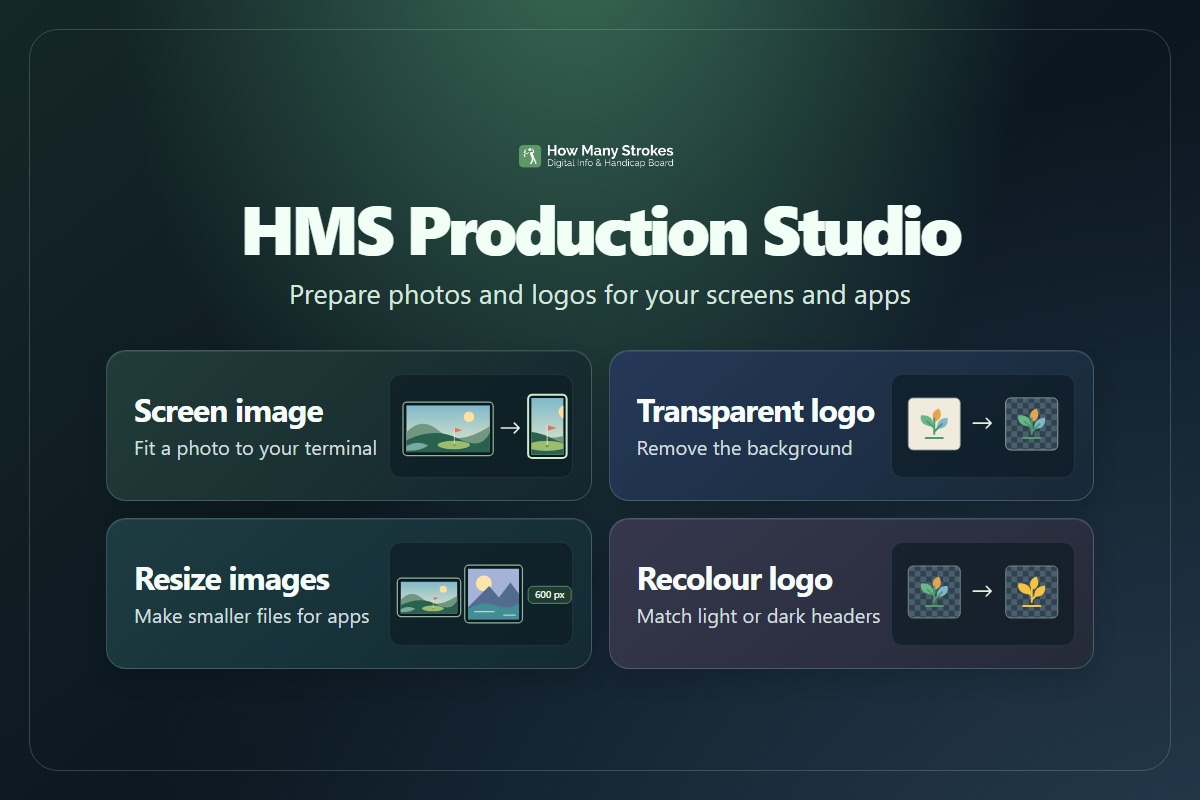
Better club images in less time with HMS Studio
It’s Friday afternoon and your team wants to update the clubhouse screensaver and share a photo with members before the weekend. One version needs to fill a tall terminal. The other needs to load quickly on a phone by the first tee.
HMS Production Studio helps you make both from the same photo. Crop it to fit, resize a batch of event photos in one go, or remove the background from your club crest so it sits neatly on your club’s colours. Built-in AI can also sharpen a soft photo. Your team spends less time preparing files, and players see a more polished club on every screen.
Find Studio in your HMS Management System
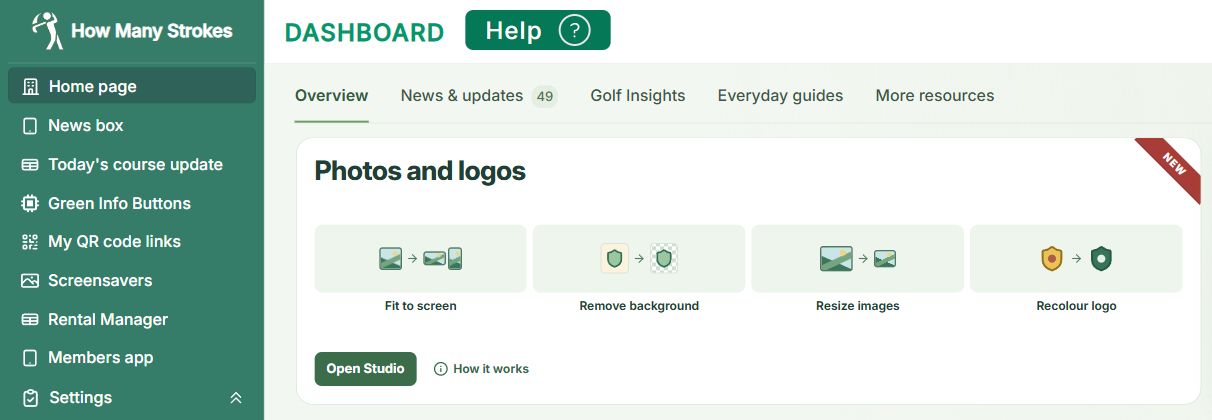
From the Home page, select Help. On the Overview tab, find Photos and logos and choose Open Studio. Select How it works for a quick walkthrough.
Give your club a consistent look
- Welcome players with a course photo that fits your kiosk or terminal screen.
- Prepare a club crest or an event photo for your Members App.
- Add a welcome image for visitors who scan your club’s QR code to open the Guest Web App.
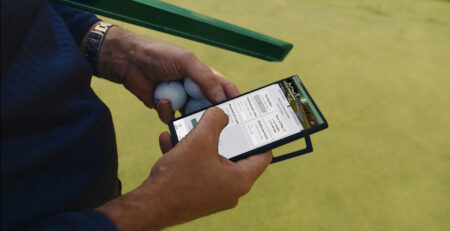
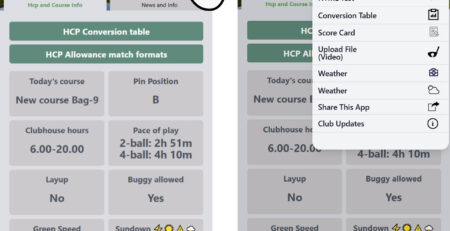
- Resize a reference photo your course team can open in the Course Update App.
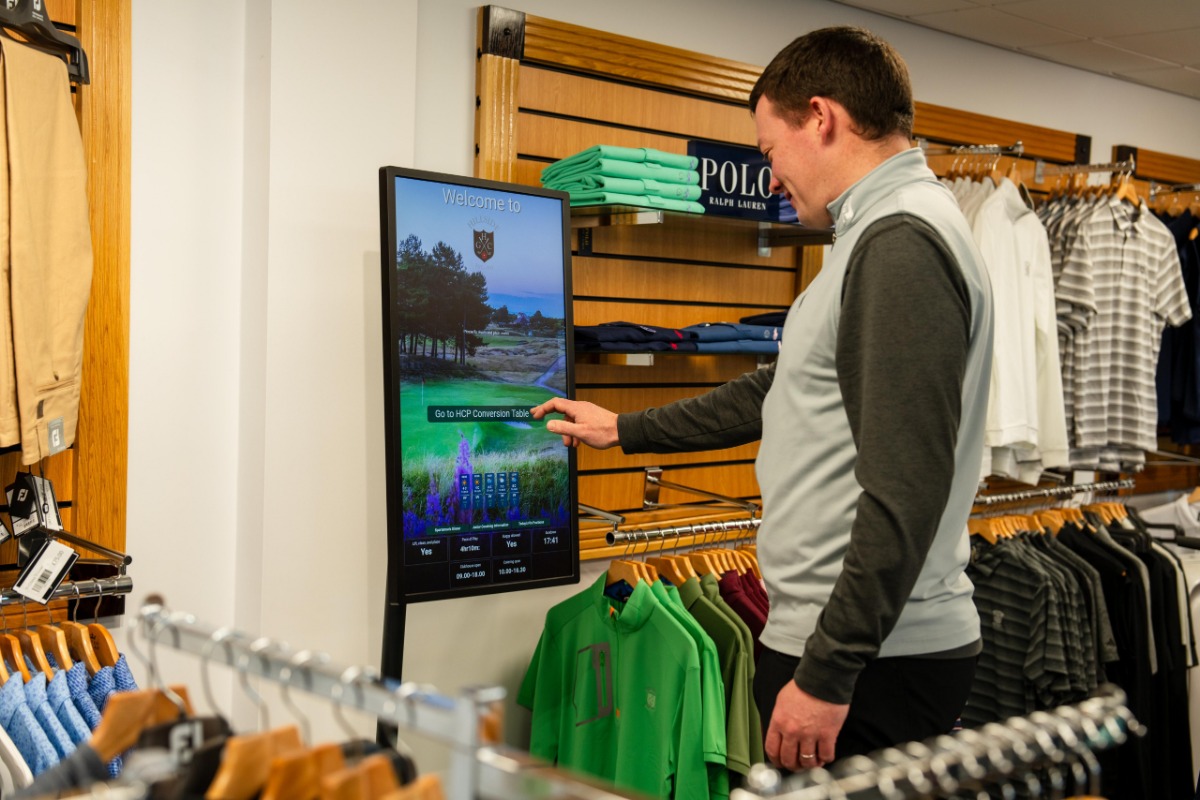
A better welcome on the clubhouse screen
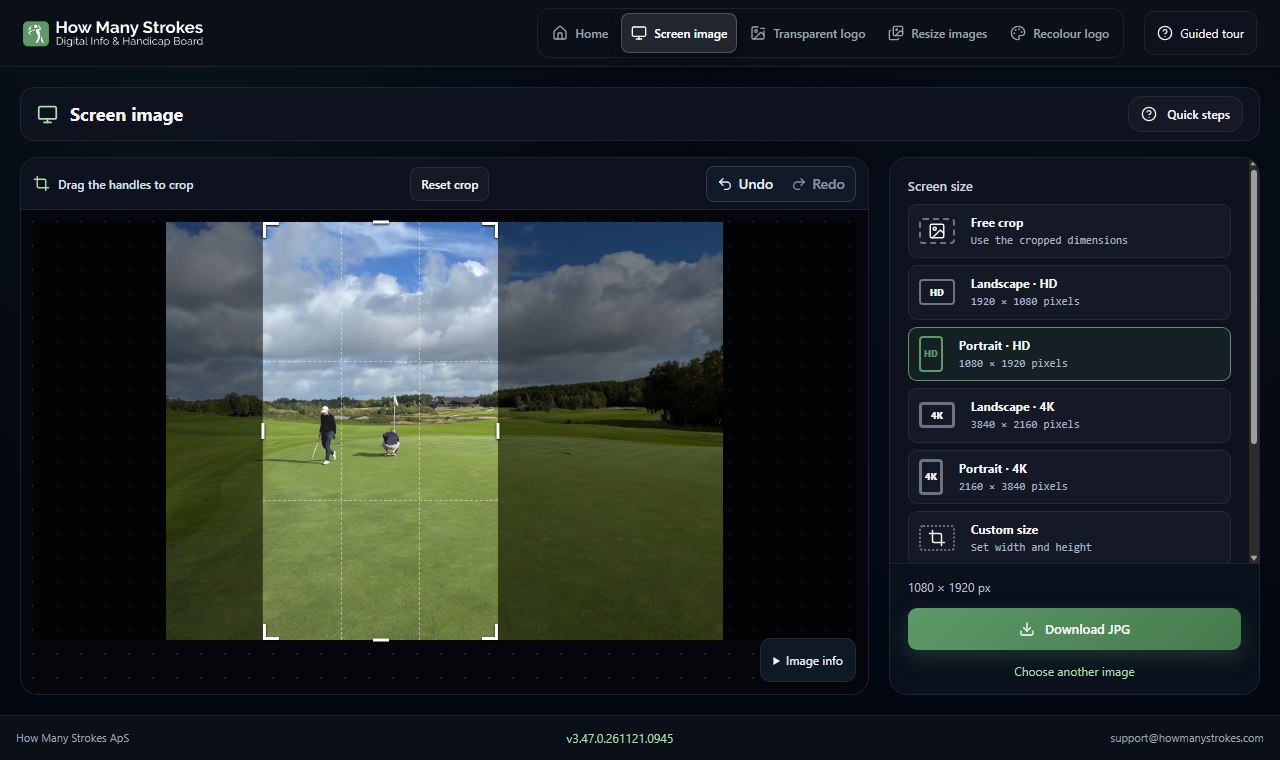
In Studio, choose Screen image, pick the portrait or landscape preset that matches your terminal, and move the crop until the photo looks right. Select Download JPG, save it to your drive, then upload that file under Screensavers in your HMS Management System.
Improve image quality with AI
An older course photo can look fine in a message and turn blurry when it fills the clubhouse screen. Studio can make that photo worth using again. In this example, look at the red flag, the bunker edge and the trees.
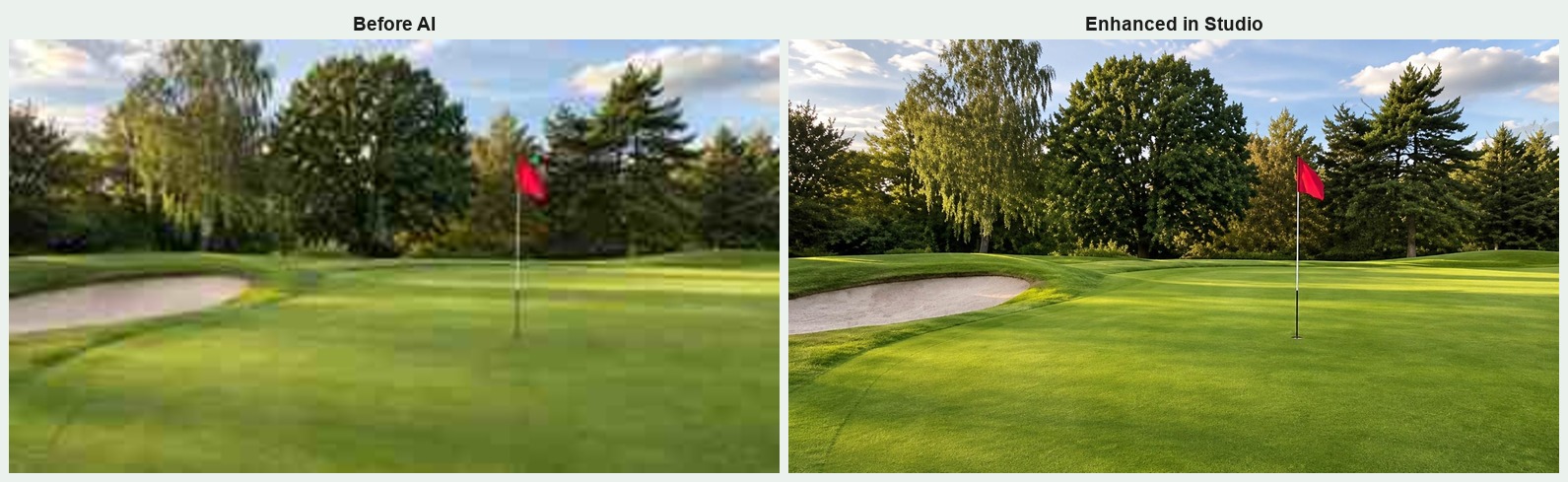
In Screen image, frame the photo, open Improve image quality and choose Enhance with AI. Check the result in the preview, then select Download JPG to save it to your drive.
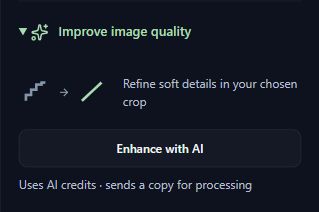
Your How Many Strokes subscription gives you access to Studio’s shared monthly AI credits for image enhancements. The AI credits used meter at the bottom of Studio shows how much has been used.
Make your club logo ready for your website
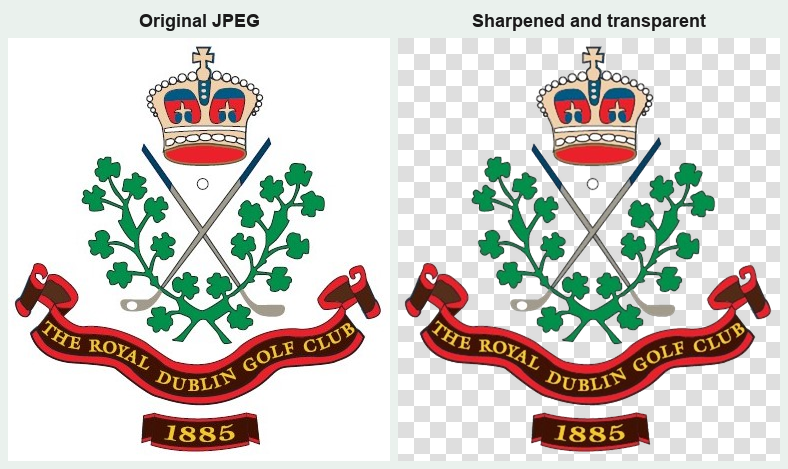
If your club logo is a JPEG with a white box around it, open it in Transparent logo and choose Remove solid background. Save it as a PNG so your website’s own colours show through around the logo.
If the only copy you have looks small or blurry, open Improve image quality in the same tool and select Enhance with AI. Studio can sharpen the edges and make fine lettering easier to read. Check the preview, then select Download PNG to save the finished logo to your drive before uploading it to your club website.
Help players get the update quickly on a phone
Use Resize images to make a smaller JPG for your app. In the example below, Studio took a 2.8 MB course photo down to about 150 KB at 1,000 pixels wide. That gives a phone much less to download on a weak connection.
Keep the headline short and comfortably sized. Put dates, times and instructions in the app’s text fields so readers can scan them easily on a small screen. Use Recolour logo to make a version that suits a light or dark app header.
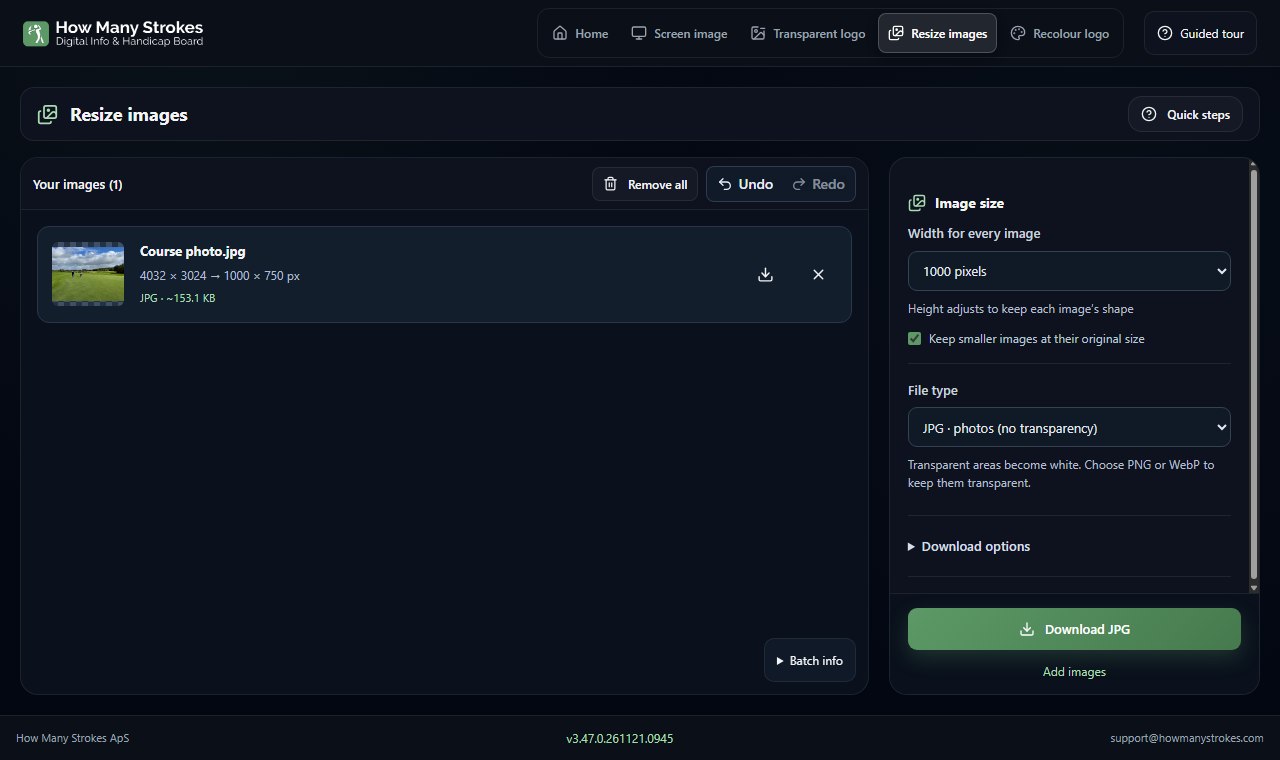
Save your finished images to your drive, then upload them to the relevant content area in your HMS Management System. To see how it feels before using your own photos, open Studio and select Try a sample.


Leave a Reply
You must be logged in to post a comment.