Members App: One Branded App for Everyday Club Life
A useful member channel—not simply another app
A club app earns its place on a golfer’s phone by being useful: before the round, on the course and throughout the season.
That is the idea behind the How Many Strokes Members App, a fully branded iPhone and Android experience that brings club communication, golf information and member services together in one place.
Members no longer need to search across separate emails, web pages and systems to find the information that matters today. The app can connect news, events, benefits, course conditions, bookings, payments and practical golf tools in an experience built around the club’s identity.
For staff, it creates a direct member channel that is simple to manage and connected to the wider How Many Strokes platform.
Everything members need for the day’s golf
The most successful club app is not necessarily the one with the longest menu. It is the one members trust when they have a practical question.
Is the course open? Are buggies permitted? Where can I find today’s pin positions? Has anything changed before my tee time?
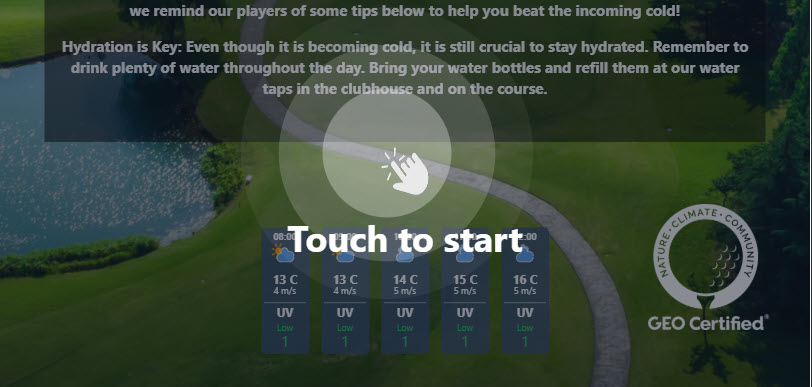
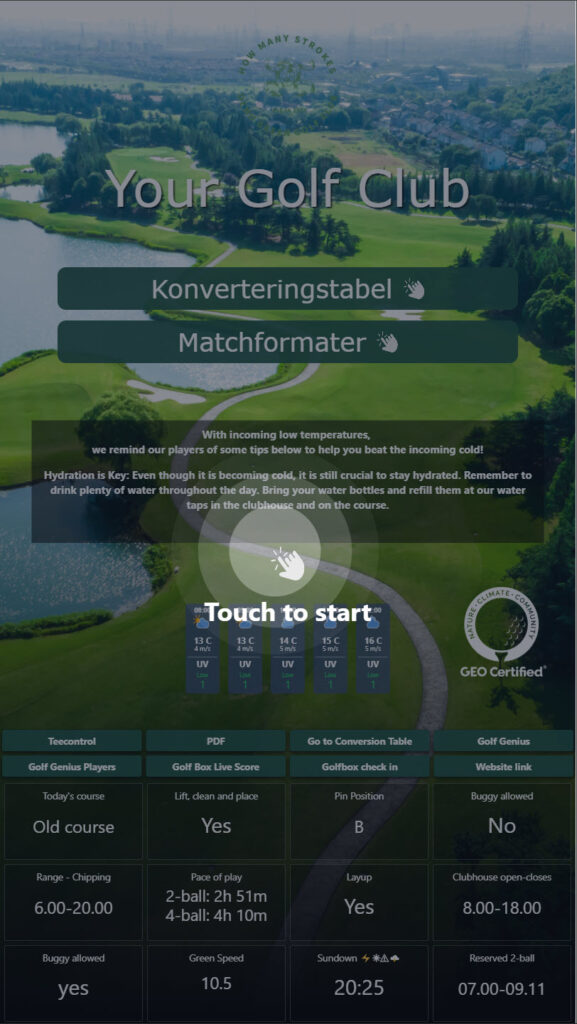
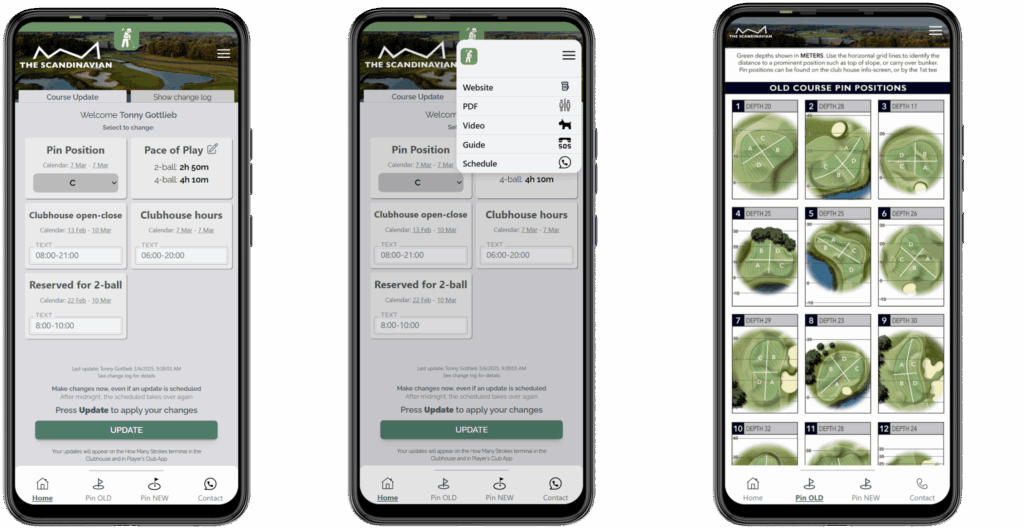
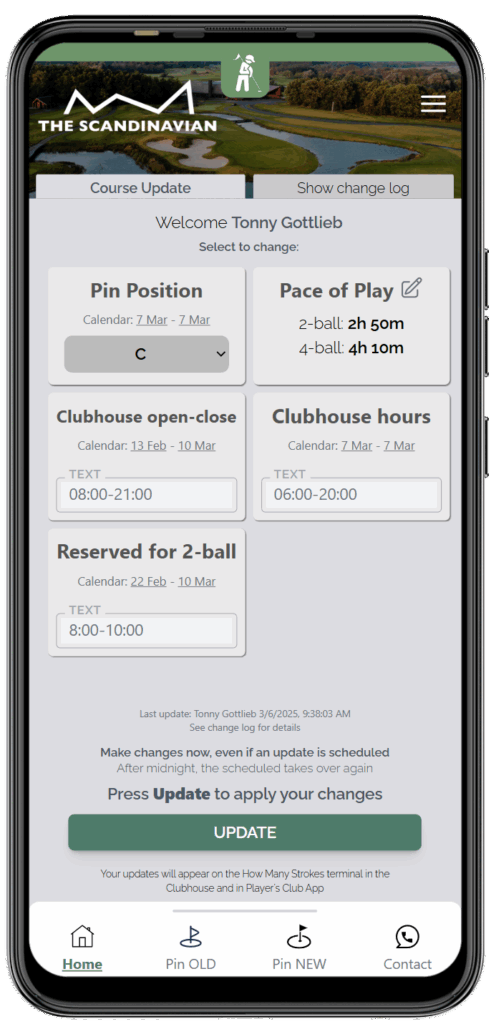
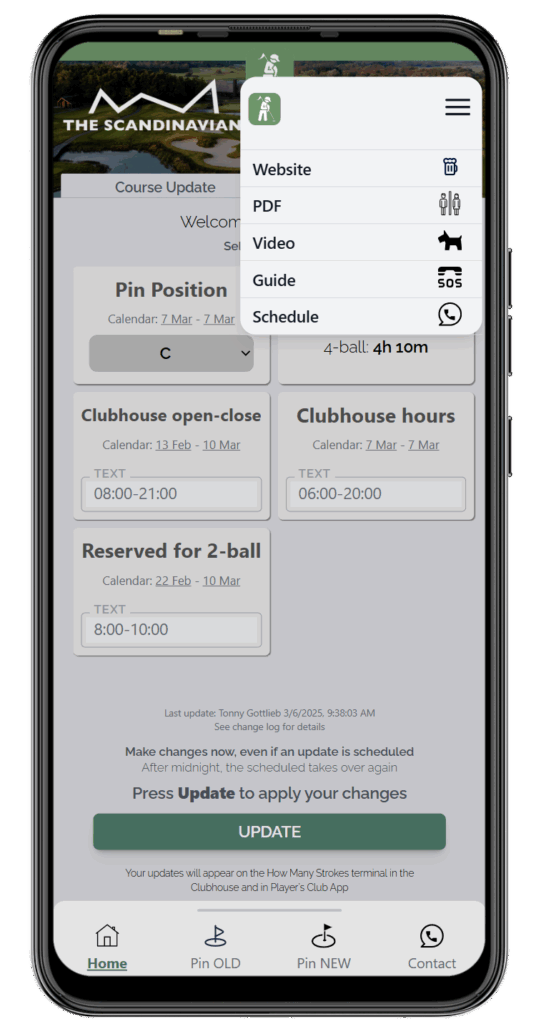
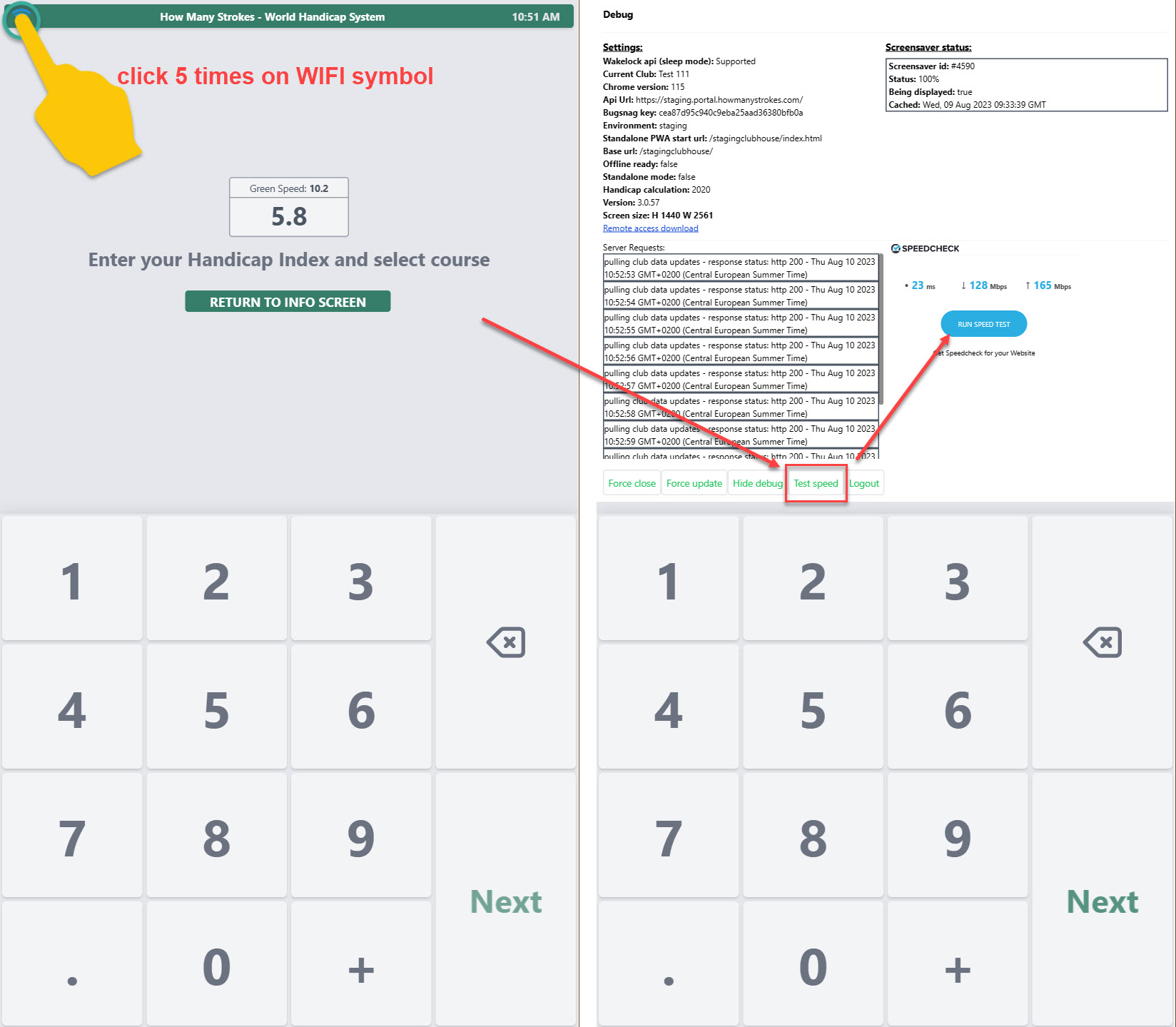
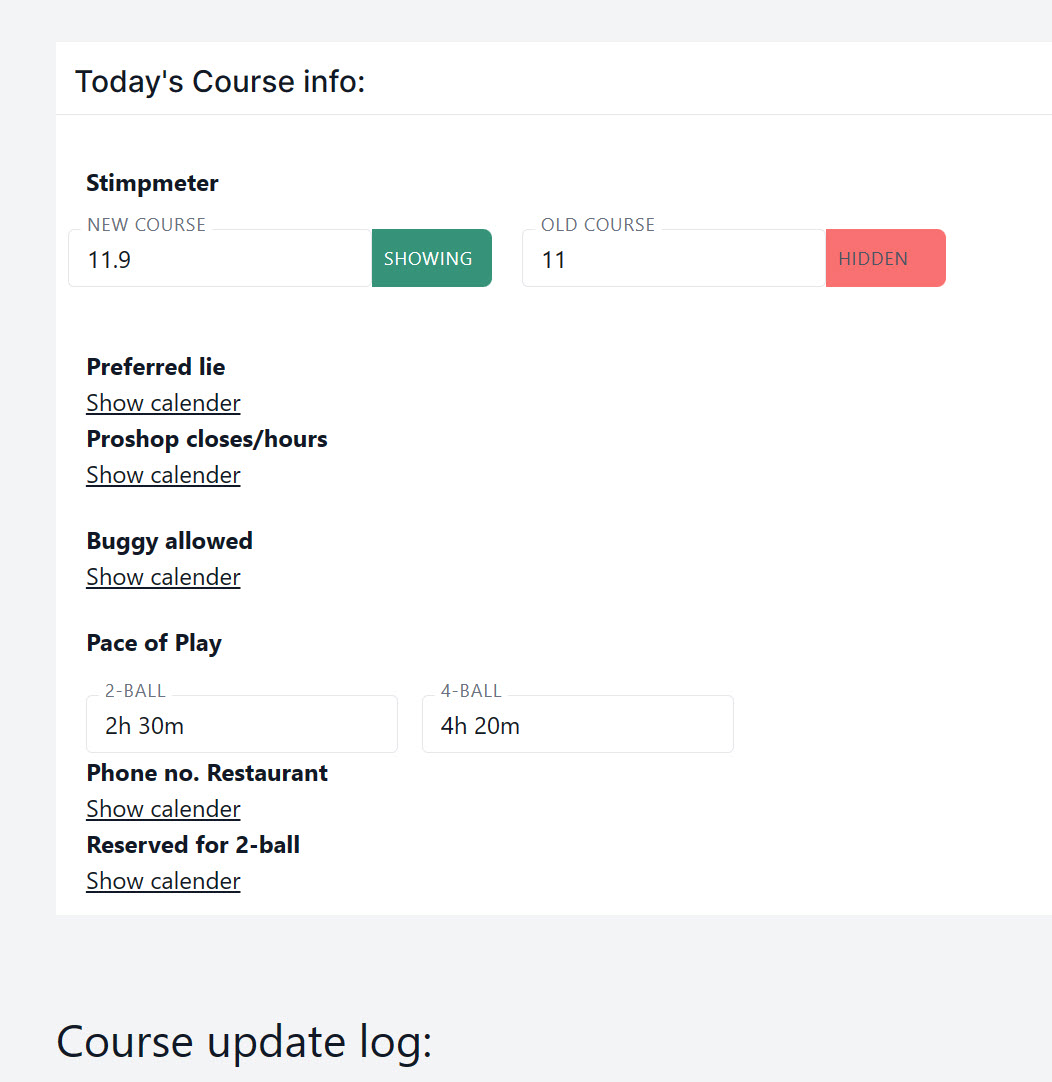
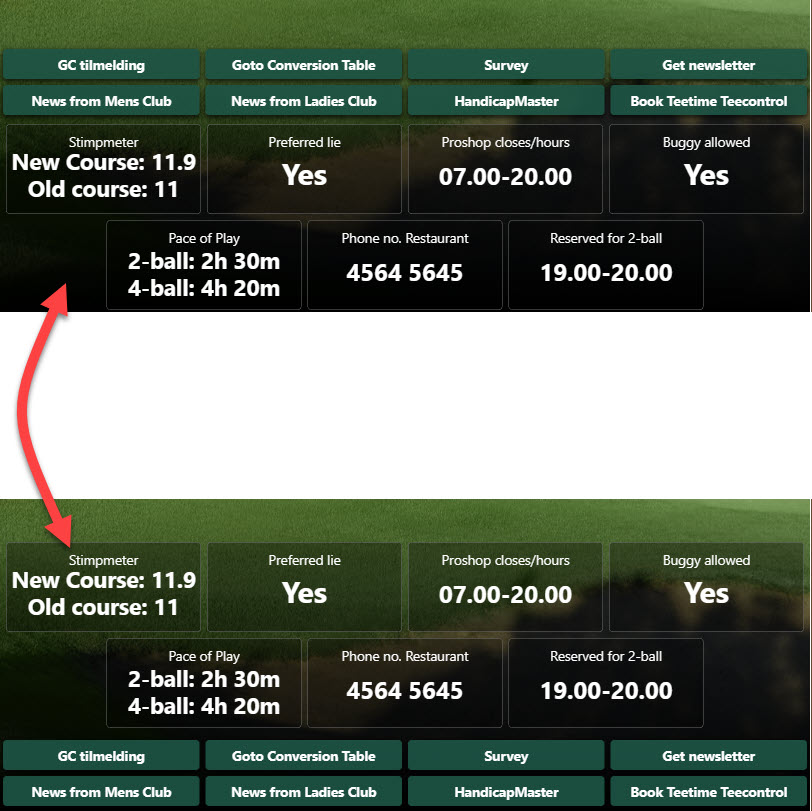
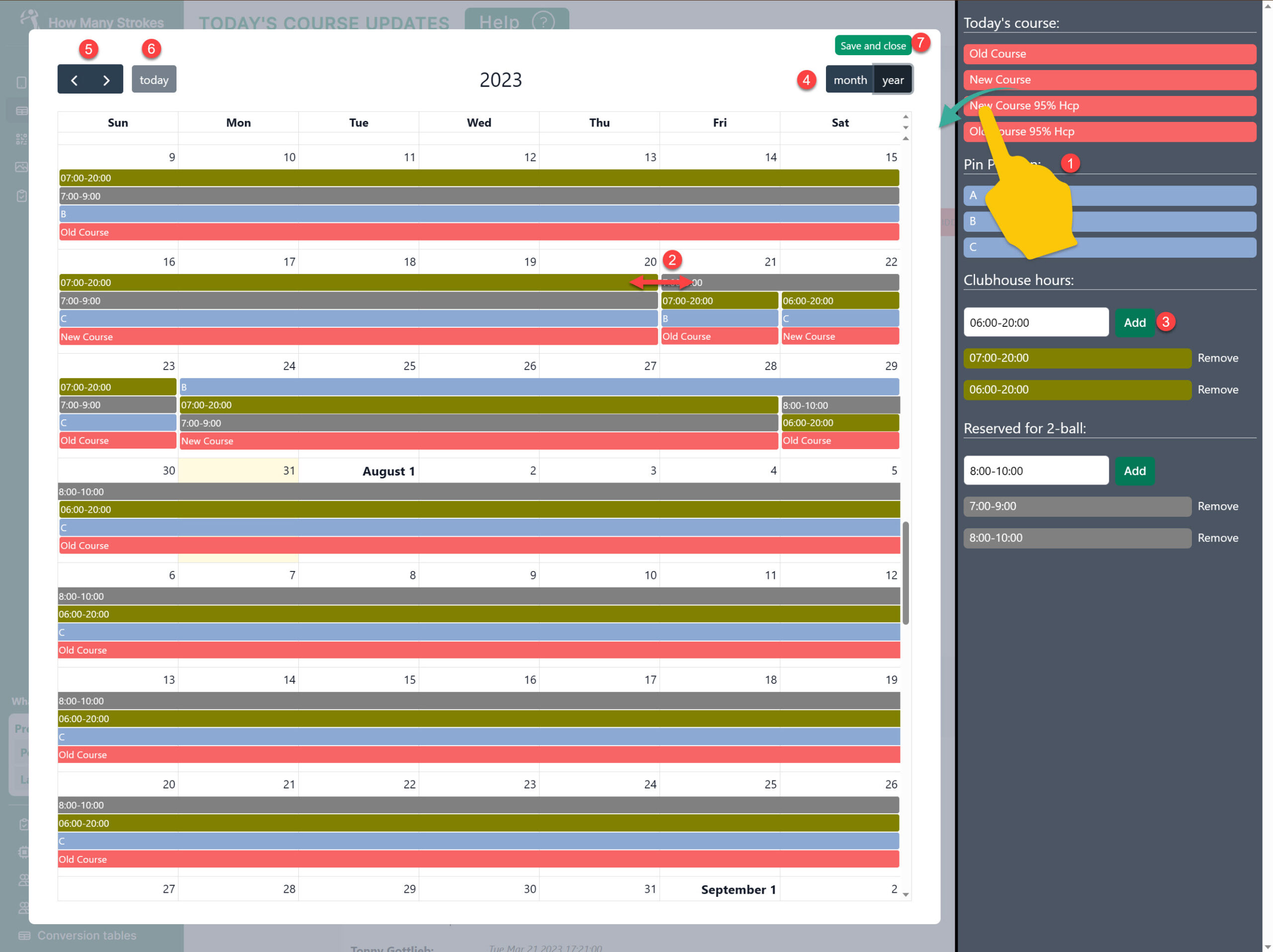
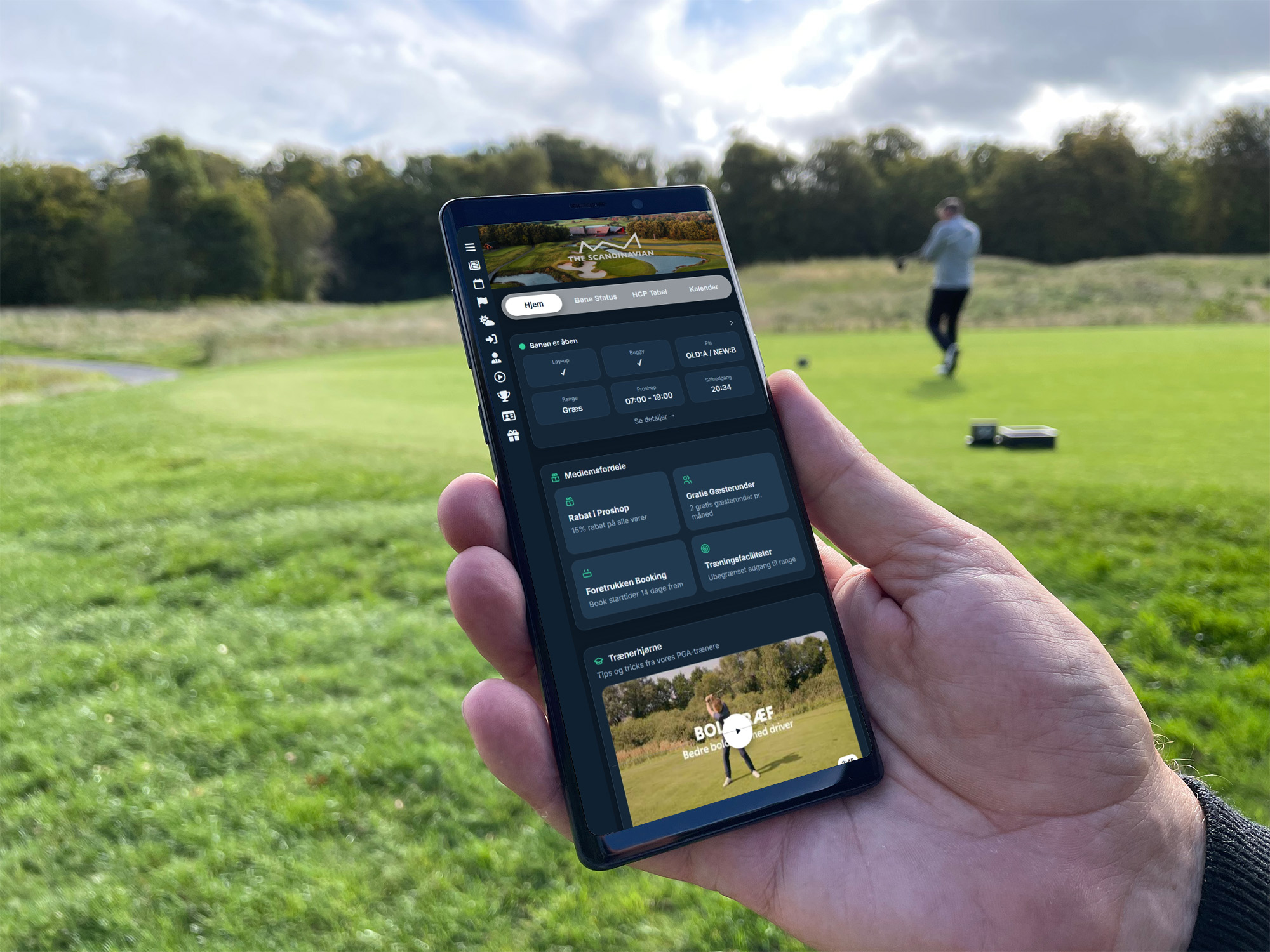
The Members App can place live course status, playing conditions, weather, local information and pin positions directly in the golfer’s hand. Staff can make fast operational changes through the Course Update App, helping members see the latest information without needing to call the golf shop.
The same experience can include the Digital HCP Conversion Table, handicap and match-format tools, and digital scorecard functionality. These practical services give golfers a genuine reason to return to the app whenever they play.
Club life in one branded experience
The Members App extends beyond the day’s course information. It can become the natural starting point for the wider club experience.
Depending on the club’s configuration, members can use the app to:
- read club news and practical announcements;
- discover events, activities and member benefits;
- access tee-time, dining and service bookings;
- complete relevant payments from their phone;
- find competition and scorecard information;
- open videos, coaching content and club resources; and
- connect with restaurants, academies, sub-clubs and other member services.
The experience is presented with the club’s own identity, content and priorities. Rather than asking members to adapt to a generic system, the app reflects the organisation they already belong to.
Push messages that stay relevant
Push notifications give a club a direct place on a member’s phone. That makes them valuable—but only when they are used with care.
A course closure, changed tee time or important event update may deserve immediate attention. A restaurant offer or general club story may be useful to a smaller group. The Members App supports targeted messages and member preferences, helping clubs communicate with the right audience instead of sending every message to everyone.
Members can choose the information that is relevant to them, including language preferences. This makes push communication more useful while protecting the trust that makes the channel valuable in the first place.
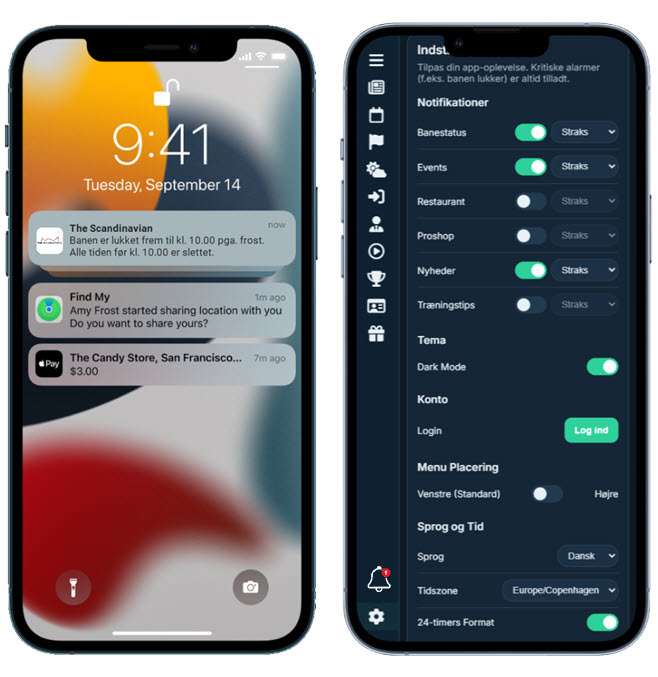
Members can choose relevant notification categories and receive timely club or course information. Image: How Many Strokes.
Publish once and keep every channel connected
A good member experience depends on the information being current. That requires an efficient workflow for the people responsible for maintaining it.
The How Many Strokes Management System gives the club one central environment for content, media, settings and scheduled communication. Operational teams can make quick course changes through the Course Update App, while other staff manage news, events, services and member content.
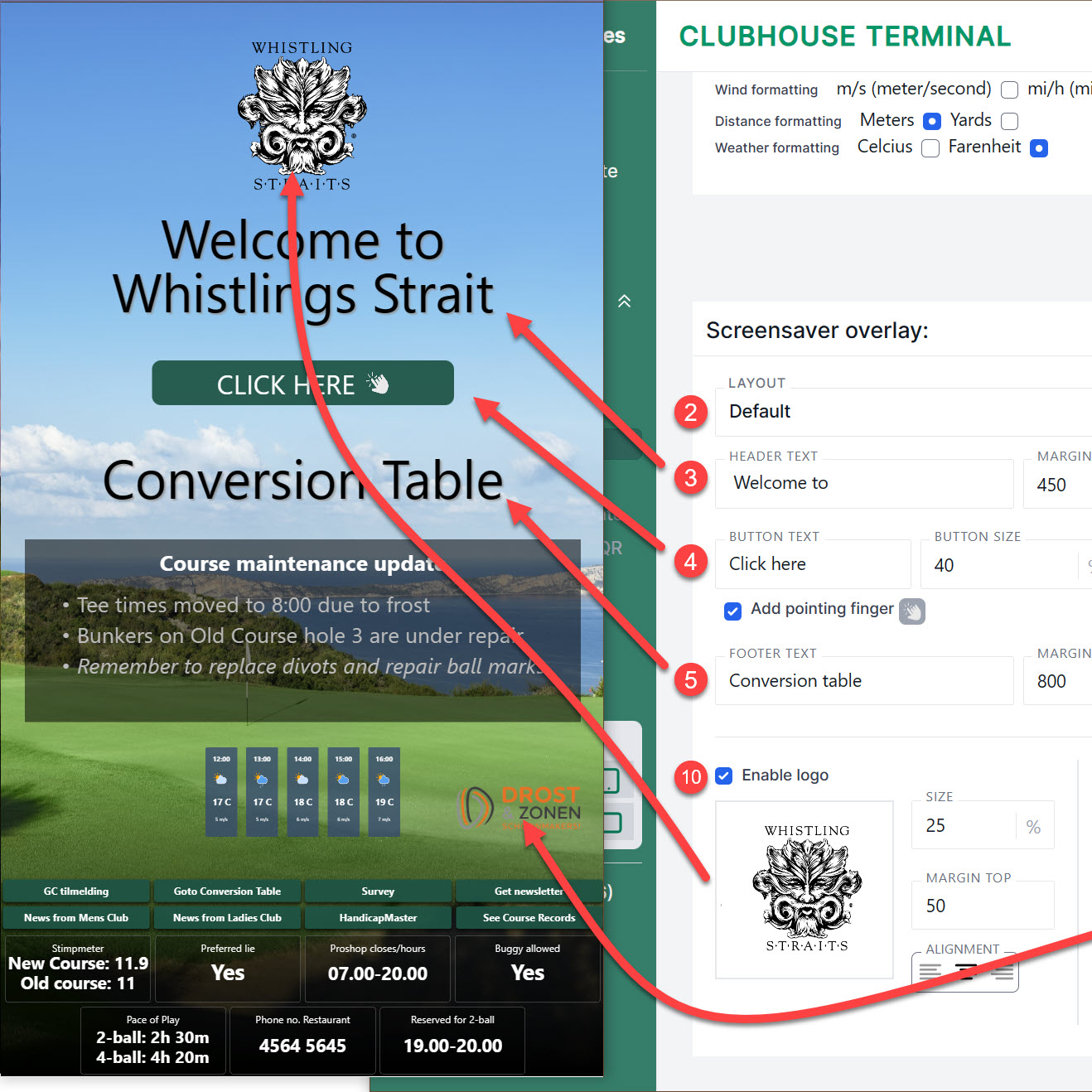
Approved information can then be used across the Members App, the club website, social media and the Digital Information Board. This connected approach reduces repeated work and helps prevent members from seeing different versions of the same information in different places.
The objective is simple: update information where it is created and make it available wherever golfers need it.
Multiple languages, venues and experiences
Golf clubs and resorts often serve members, international visitors and different communities within the same organisation.
The Members App supports multiple languages, with AI-supported tools that can help staff draft, improve and translate content. This gives clubs a more practical way to communicate clearly without creating an entirely separate publishing process for every language.
The platform can also support multiple venues and distinct app experiences. A resort might connect golf courses, restaurants, accommodation, a spa and events. A member-owned club might create relevant areas for sections, academies, competitions or social groups.
Each experience can have its own identity and content while remaining part of one centrally managed platform.
Learn what members find useful
Downloads alone do not show whether an app has become part of club life. The more important questions are what members use, what they return to and which services help them complete a task.
The Members App includes privacy-conscious analytics and engagement insight. Clubs can understand which areas receive attention, which links members use and which content supports repeat visits. This gives the team a better basis for improving communication and deciding what deserves a more prominent place.
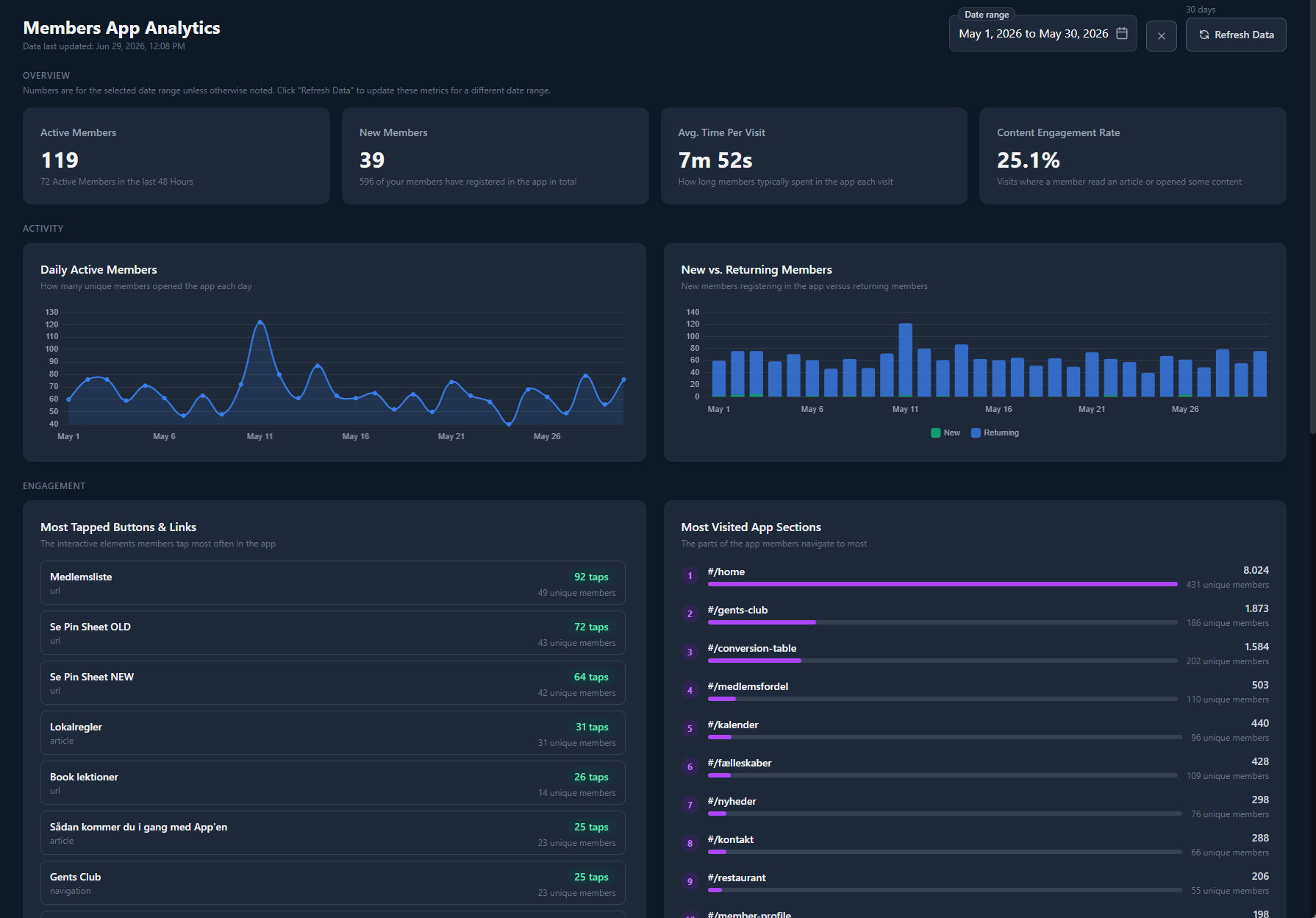
Privacy-conscious analytics help clubs understand which information and services members use. Image: How Many Strokes.
Member information and app activity should always be handled transparently and in line with the club’s responsibilities. More information is available in the How Many Strokes App Privacy Policy.
Built with a leading club
The Members App is already supporting communication at The Scandinavian in Denmark.
“We’re very pleased with our decision to choose How Many Strokes for our new app, gathering our members communication in one central place.
The implementation process has been seamless, and the management system is highly flexible, offering a wide range of options while remaining simple and efficient for our staff to manage.”
Christian Tage Nyvang Hansen, CEO, The Scandinavian
The response from members reflects the importance of combining communication with useful functionality:
“What an excellent upgrade of communication with lots of functionality for us members. Great new initiatives from the club.”
Ole Kjeldsen, Chairman, Gents Club at The Scandinavian
Members App or QR-access Club Web App?
How Many Strokes offers two different app experiences for different communication needs.
The White-Label Golf Club Web App is a lightweight experience that opens immediately in a browser from a QR code or link. It does not require an App Store download or login and is particularly useful for visitors and green-fee players.
The Members App is the fuller, native iPhone and Android experience for clubs and resorts that want deeper member functionality, including push communication, booking and payment connections, digital scorecards, member services and engagement insight.
A club can use the solution that fits its audience—or connect both experiences as part of one information flow.
A member app people have a reason to open
The ambition is not simply to place a club logo on another mobile app.
It is to create one dependable place where members can prepare for a round, understand what is happening at the club and access the services they use throughout the season. When the information is useful, current and easy to find, the app becomes part of the member experience rather than another communication channel competing for attention.
The How Many Strokes Members App combines that member experience with the tools staff need to keep it relevant.
See the Members App in action
Explore the complete Members App experience or book a personalised demonstration to see how it can work for your golf club or resort.