We always strive to make your experience with the How Many Strokes Solution as seamless and intuitive as possible. Based on user feedback, we have made some key improvements to streamline the process of entering handicaps and navigating the app.
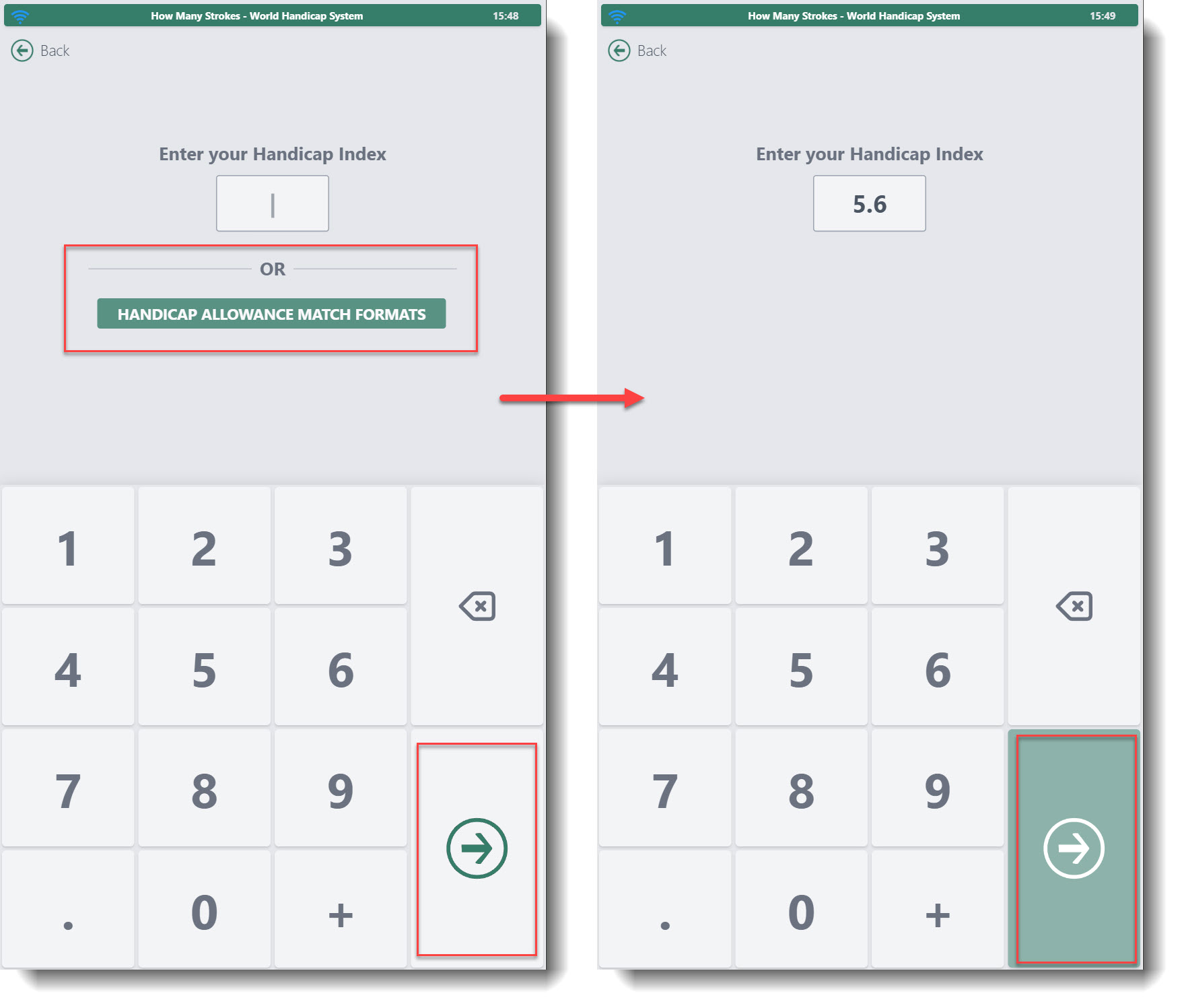
We’ve observed that some users were accidentally pressing the “Handicap Allowance” button after entering their handicap in the Handicap Conversion Table. To solve this, we’ve made a simple change: the “Handicap Allowance” button will now disappear as soon as the player enters their handicap. This ensures there’s no confusion or accidental pressing of the button, making your setup quicker and easier.
Making Navigation More Intuitive
Another update we’ve made is to replace the “Next” button with a universally recognized symbol. This small tweak makes navigation clearer for everyone, regardless of language or familiarity with the app. We want each step to be instantly understood, ensuring you can enjoy your round of golf without a hitch.
Additionally, we’ve added a “Back” button to all pages, allowing you to easily navigate to previous screens whenever you need to adjust something. It’s all about making your journey smoother.
Try It for Yourself
We’re excited about these changes, and we hope you are too! Head over to the screen, explore these new updates, and let us know what you think. Your feedback is invaluable as we continue to improve the experience for our users.
Handicap allowances are created to ensure fairness across various formats of play, whether for 9 or 18 holes. These allowances are applied to the unrounded Course Handicap as the last step in determining a player’s Playing Handicap.
Select “Handicap allowance” in addition to the normal Course Handicap
When the Handicap allowance feature is enabled on the How Many Strokes Terminal, players will have an enhanced experience. In addition to calculating their usual Course Handicap, they will now have the option to use the Handicap allowance calculator. This added functionality allows players to more accurately determine their Playing Handicap by incorporating the appropriate allowances, ensuring a fair and balanced game across various formats of play. The new option provides a seamless and comprehensive way to manage handicaps, enhancing the overall user experience and promoting equity in the game.
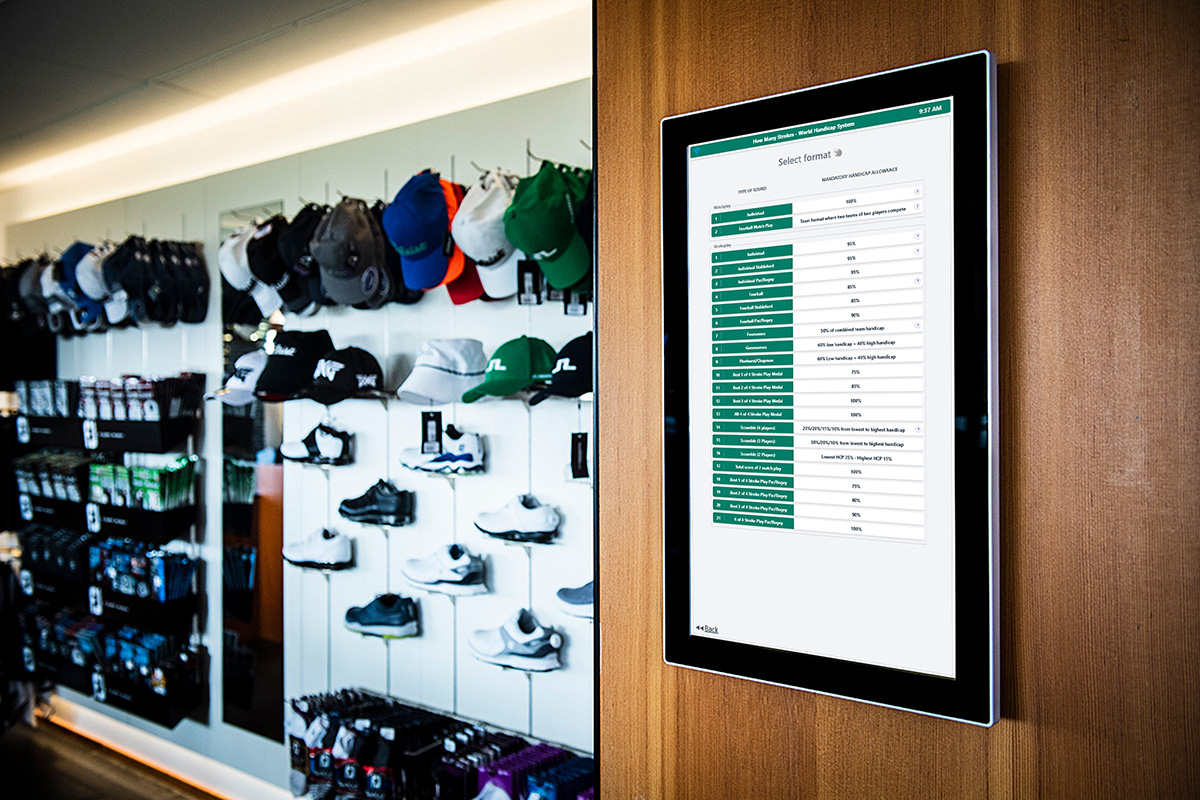
Playing Handicap Allowances Table
The formats and percentages below are examples from the 2024 launch. Check your authorised association’s current guidance and the competition terms before applying an allowance.
Individual: 95%
Individual Stableford: 95%
Individual Par/Bogey: 95%
Individual Maximum Score: 95%
Fourball: 85%
Fourball Stableford: 85%
Fourball Par/Bogey: 90%
Foursomes: 50% of combined team handicap
Greensomes: 60% low handicap + 40% high handicap
Pinehurst/Chapman: 60% low hcp + 40% high hcp
Best 1 of 4 Stroke Play: 75%
Best 2 of 4 Stroke Play: 85%
Best 3 of 4 Stroke Play: 100%
All 4 of 4 Stroke Play: 100%
Scramble (4 players):
25%/20%/15%/10% from lowest to highest hcp
Scramble (2 players): 35% low/15% high
Total score of 2 match play: 100%
Best 1 of 4 Par/Bogey: 75%
Best 2 of 4 Par/Bogey: 80%
Best 3 of 4 Par/Bogey: 90%
All 4 of 4 Par/Bogey: 100%
Options, mixed tee events and adjustments
After selecting the desired playing format from the Handicap Allowances Table, each player’s handicap is entered into the system. This process is straightforward and ensures that all relevant data is accurately recorded. Depending on the chosen format and whether it is a mixed tee event with different pars for each tee, the option to select “Tee for Scoring” becomes available. This feature allows each player to select their individual tee and specify their gender, accommodating a wide range of participants and ensuring that everyone can play from the tee that best suits their abilities.
In mixed tee events, this customization is particularly important. It allows for a fair competition by letting each player select a tee that matches their skill level and preferences. For certain formats, an additional adjustment is made to account for differences in par between the tees. This adjustment ensures that the competition remains equitable, regardless of the variations in course layout and difficulty.
The system is designed to handle these adjustments seamlessly, providing players with an accurate Playing Handicap that reflects the specific conditions of the event. By considering factors such as tee selection and par differences, the system enhances the fairness and enjoyment of the game, allowing all participants to compete on a level playing field.
Get your Playing Handicap and go play
Once all player information and course options have been entered into the system, the results will be displayed on the “How Many Strokes” screen. This process is designed to be user-friendly and efficient, ensuring that you can quickly and easily determine your Playing Handicap.
The “How Many Strokes” screen provides a clear and concise summary of your Playing Handicap, taking into account all the variables and adjustments specific to your selected format and course conditions. This includes any handicap allowances, tee selections, and par adjustments that may be necessary for mixed tee events.
The players can always see a more detailed overview:
In summary, the process of calculating and adjusting your Playing Handicap is designed for accuracy and fairness, ensuring an enjoyable golfing experience. It begins with selecting the appropriate format from the Handicap Allowances Table, which outlines specific percentages and rules for various competitions such as Individual, Fourball, Foursomes, Greensomes, and Scramble.
Next, player information is entered into the system. This includes handicaps, and for mixed tee events, individual tee selections and gender specifications. Adjustments are made to account for differences in par between tees, ensuring equity across diverse playing conditions.
Once all details are inputted, the results are displayed on the “How Many Strokes” screen. This user-friendly interface provides a clear and concise summary of each player’s Playing Handicap, incorporating all necessary allowances and adjustments.
With this comprehensive and straightforward process, players can confidently proceed to their game, knowing their Playing Handicap has been accurately determined. This allows for a fair competition, letting golfers focus on enjoying their round.
Course Update App for daily updates and communication with the players
The Course Update App is an essential tool for any golf club looking to improve communication and provide daily updates to players. As a golf club, you have a lot of daily information to share with your players, and the Course Update App has the functionality to make this process as seamless and efficient as possible.
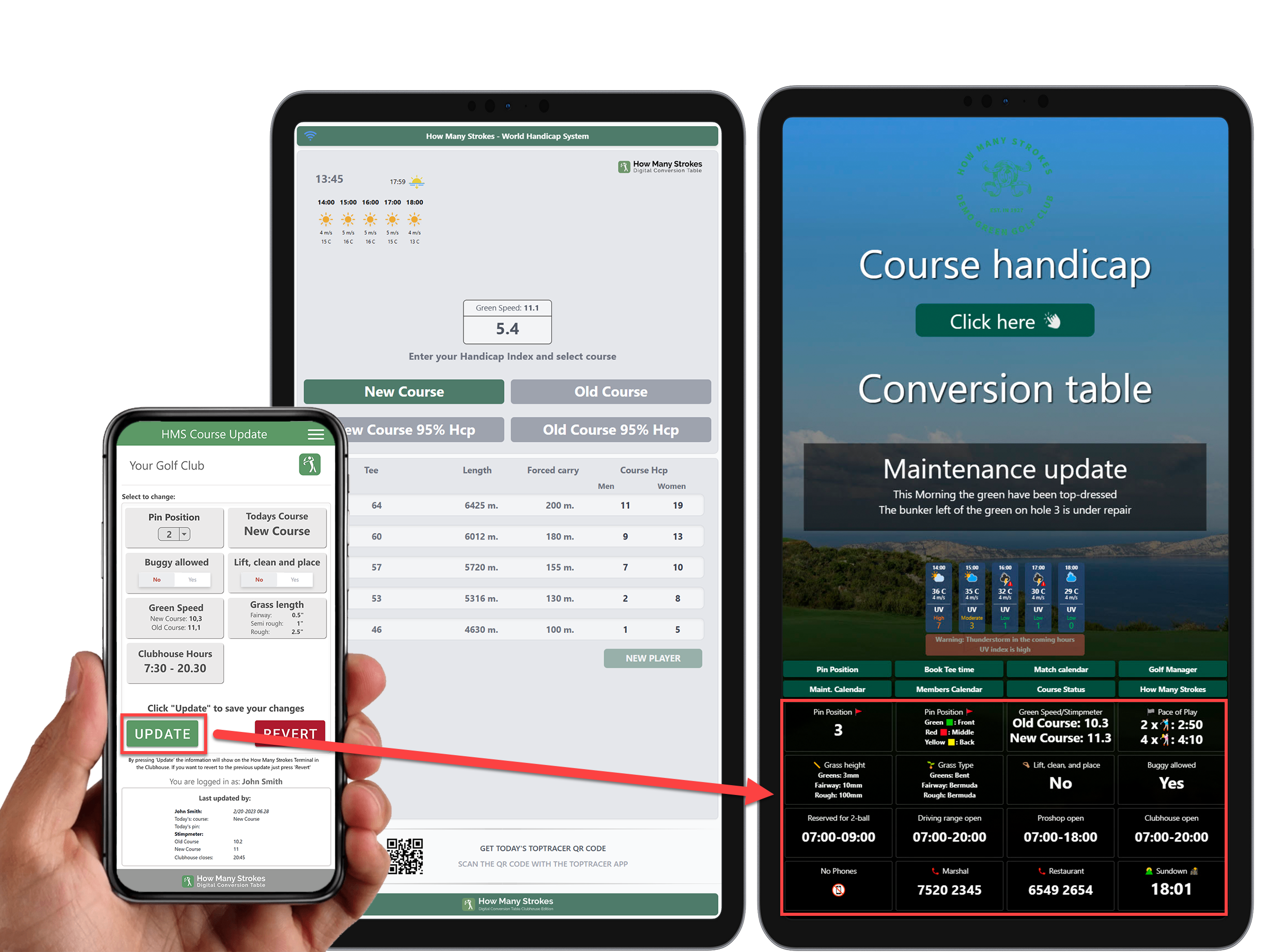
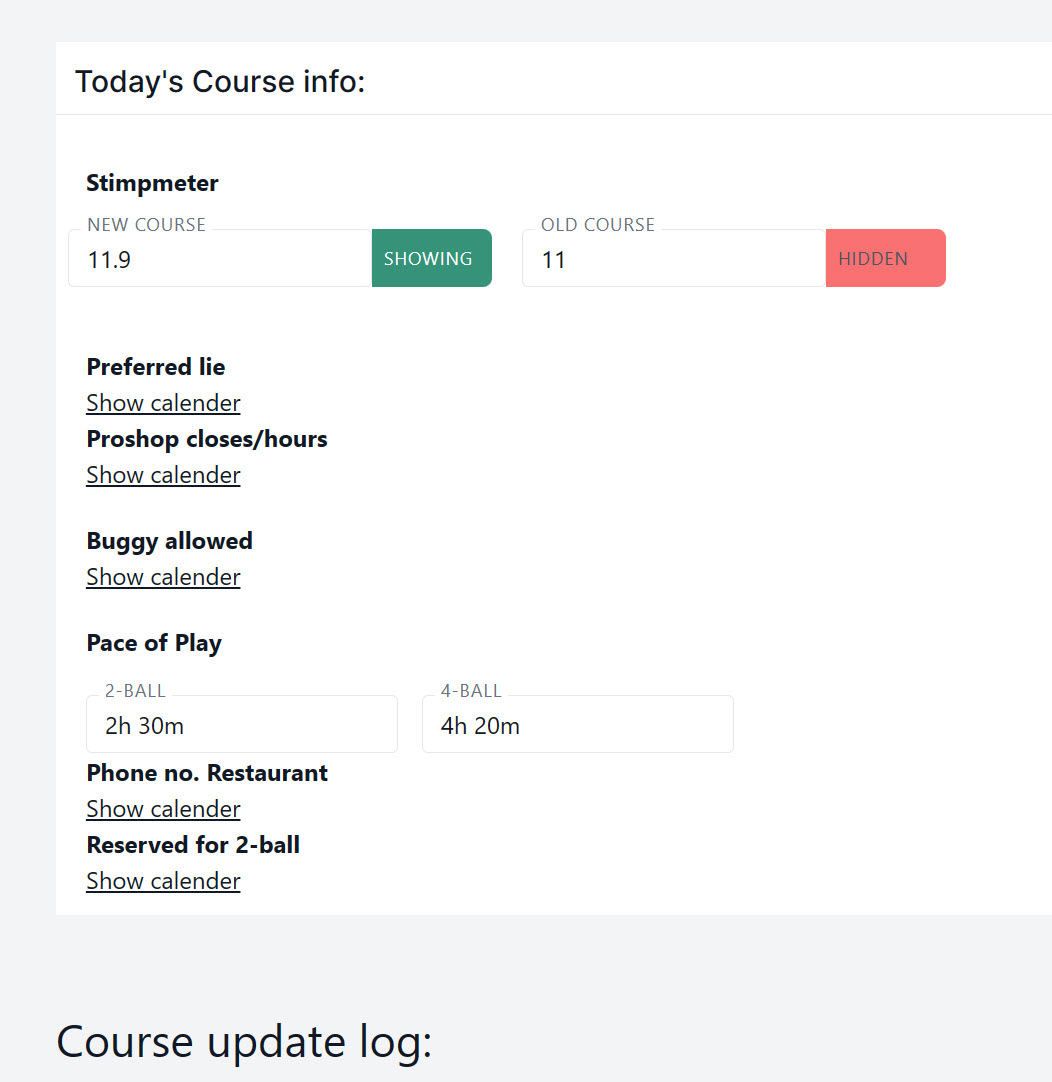
One of the key features of the app is the Stimpmeter, which allows your staff to efficiently and accurately update the green speed by inputting the measurement into the app. This feature is incredibly beneficial for both golfers and staff, as it allows golfers to check the current green speed easily and allows staff to quickly and effortlessly publish the green speed after it has been measured.
Today’s Course
Another essential feature of the app is the ability to announce today’s course. If your club has multiple courses or you are combining multiple 9-hole courses, it’s essential to be able to quickly announce what course is being played on a given day. With the Greenkeeper App, you can select today’s course from a list, and it will be shown on the How Many Strokes Screen.
Today’s Pin Position
In addition, the app also allows you to show today’s Pin Position. This feature is just as simple to use as announcing today’s course, select the proper Pin Position and click update in the App, and it will show on the How Many Strokes Screen together with all the other information that you have chosen.
The Greenkeeper App
The Greenkeeper App is also personalized for each Greenkeeper or staff member, so each person can easily track updates and keep records of all information changes. The app maintains a log of the updates made, including the specific information that was changed, the date and time of the update, and the individual who made the update. This feature streamlines the process of updating green speed information and ensures that golfers have access to the most current and accurate information.
In conclusion, the Greenkeeper App is an essential tool for any golf club looking to improve communication and provide daily updates to players. With the app’s functionality to update green speed, announce today’s course, and show today’s pin position, it streamlines the process of updating information. It ensures that players have access to the most current and accurate data. With personalized log functionality for each staff member, you can easily track updates and keep records of all information changes. Try the Greenkeeper App today and see the difference it can make for your golf club.
Add a new user to “Update App”
New users can be seamlessly integrated into the Update App through the How Many Strokes Management Portal. The process is designed to be straightforward and efficient, ensuring that adding new users is quick and hassle-free.
To begin, access the How Many Strokes Management Portal and navigate to the section for adding new users. Here, you will find a user-friendly interface where you can input the necessary details. Start by entering the new user’s name and email address into the provided fields. This ensures that the invitation is personalized and directed to the correct recipient.
Once you have entered the required information, simply click on the “Send Invite” button. This action triggers an autom
ated process that sends an email invitation to the new user. The email they receive contains detailed instructions on how to proceed with installing and using the Update App.
The instructions in the email guide the new user through each step of the installation process, ensuring that even those who are not tech-savvy can easily follow along. It covers downloading the app, installing it on their device, and setting up their account. Additionally, the email provides helpful tips on how to navigate and make the most of the app’s features.
By streamlining the process of adding new users, the How Many Strokes Management Portal enhances user management and ensures that new members can quickly and easily get started with the Update App. This efficient system supports a smooth transition for new users, allowing them to integrate seamlessly and begin using the app’s functionalities without delay.
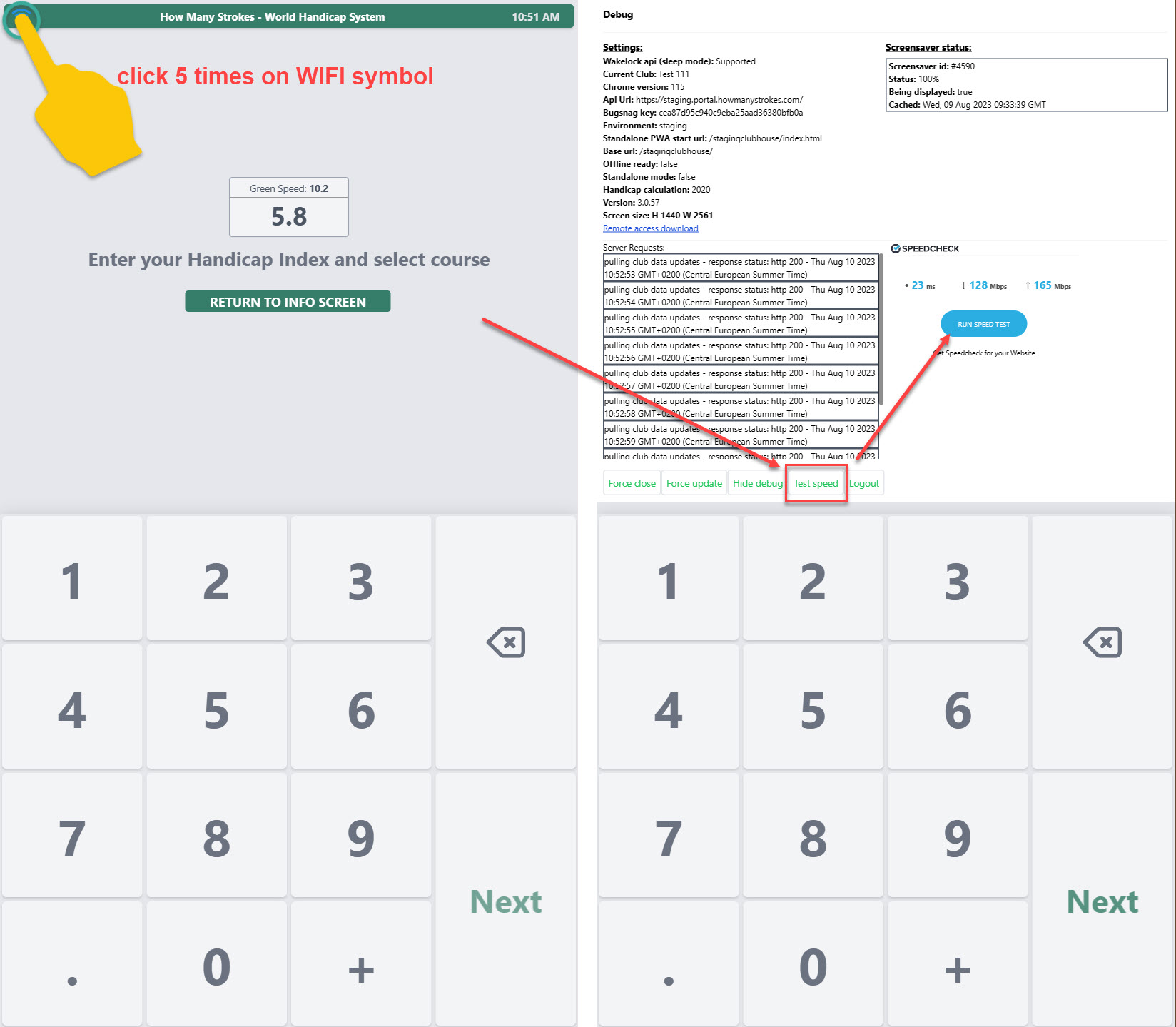
If you see that updates a taking a long time to show on the screen it might be because of a slow internet connection.
You can test the WIFI (or cable) speed directly in the Terminal by tapping five times on the WIFI symbol in the top left corner. This will show the debug menu and allow you to test the internet speed by clicking on "Test Speed".
When done, click on "Hide Debug"
In case you only want to display the green speed for one cause you can now hide the speed for the courses that you don't want to show. This could be if you have additional courses for handicap allowance (85%, 95% etc.) and only want to show the green speed for the main course.
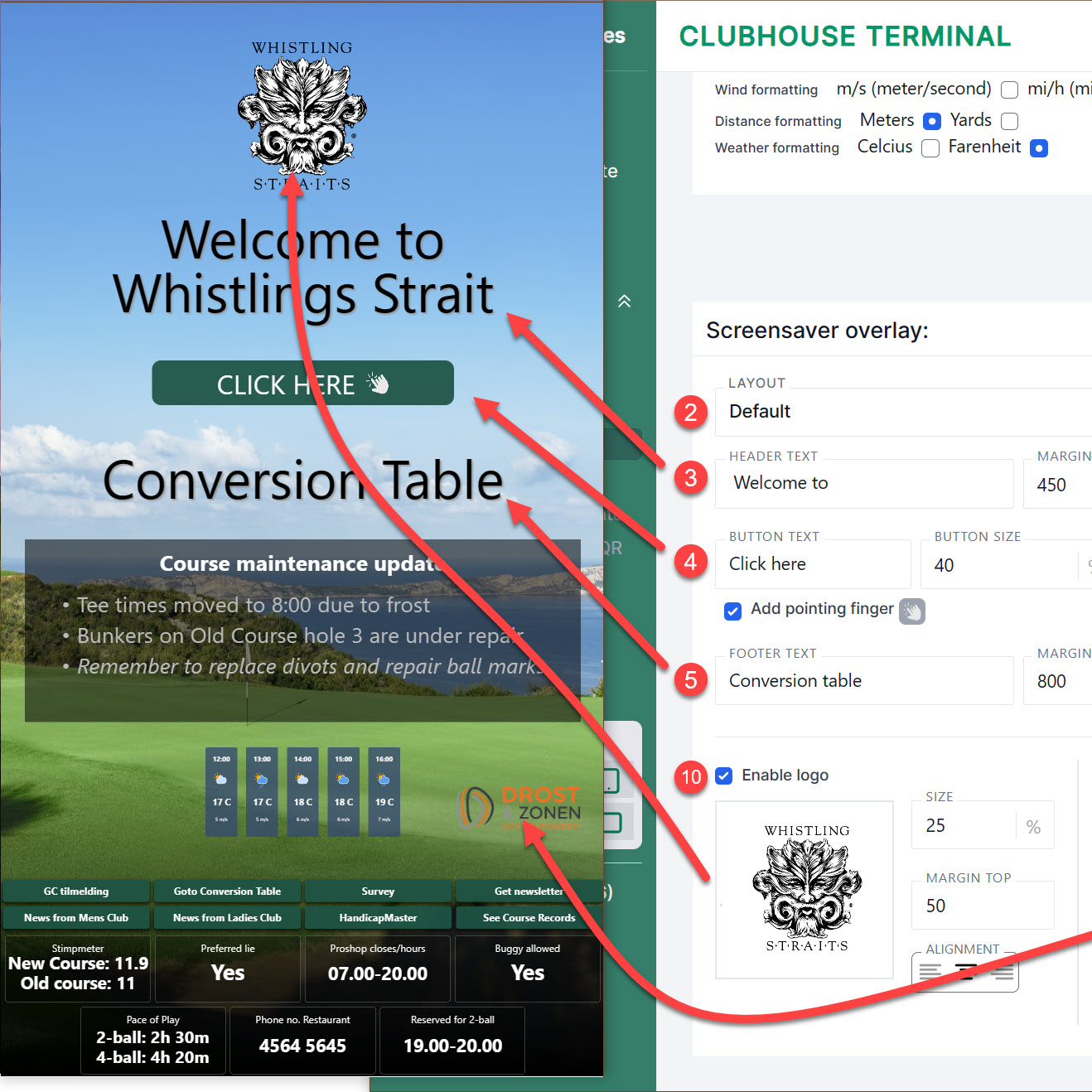
You can even add a sponsor logo on the screen if you want to promote your sponsors.
In Terminal settings the basic setup are done the first time the Terminal screen is put up. Typically this is already configured by the delivery team at How Many Strokes.
You can change the text and layout if you need. Read more about how this is done in "Digital Information Board"
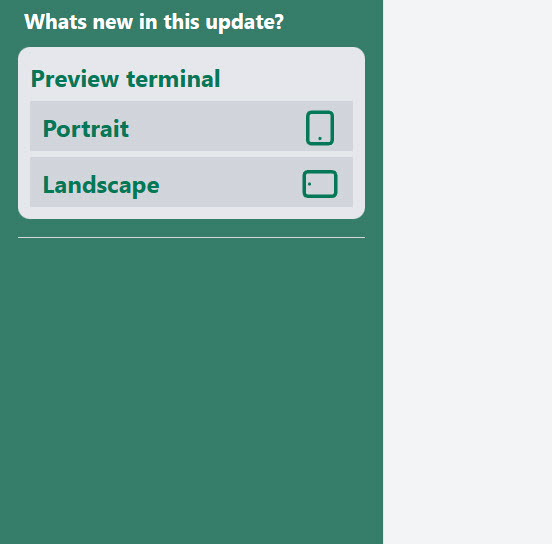
Remember that you can use the “Preview Terminal” if you want to see your changes without going to the physical Terminal screen.
To make it easy for you to see you changes when updating in the management system, you can just click on the previews buttons to see what you screen looks like live.
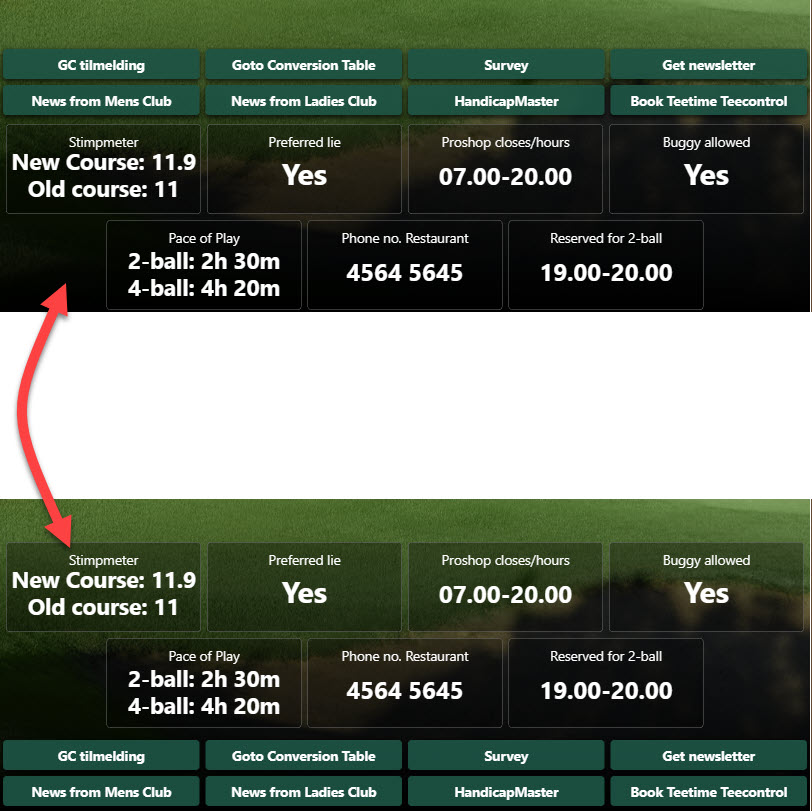
Today’s course update is the info boxes on the screen. Here you can show the daily course information. For example Stimpmeter, Today’s course, Pin Position, Clubhouse hours and much more.
The information can be changes in the Management system, the mobile course update App or scheduled in the built-in calendar.
Calendar overview:
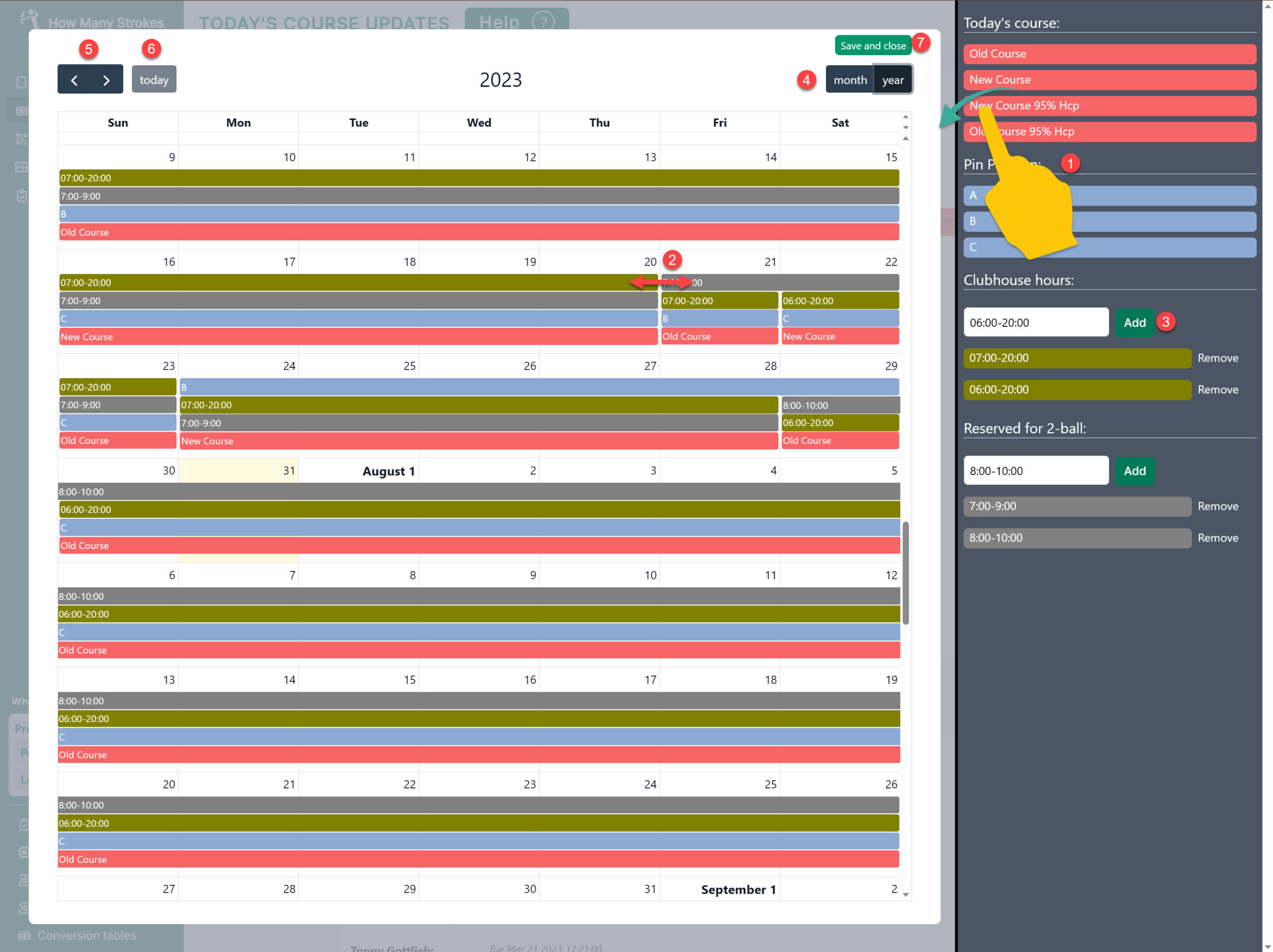
Much of the information that you want to show in the info boxes are planned ahead. Today’s course, Pin position, Clubhouse open hours etc. can be scheduled in the calendar for a period or the whole year if needed.
When you open the calendar (click on calendar in “Today’s course update”) you can drag your selections to specific dates
If the same selection should show over several days, you can drag the selection by clicking on the end of the selection
In some cases you could need to have different values for example on “Clubhouse Open”, Phone number to Marshal (if you have more that on and they work on different days), Time reserved for 2-balls etc. In that case you just add the text that you want to show in the info box.
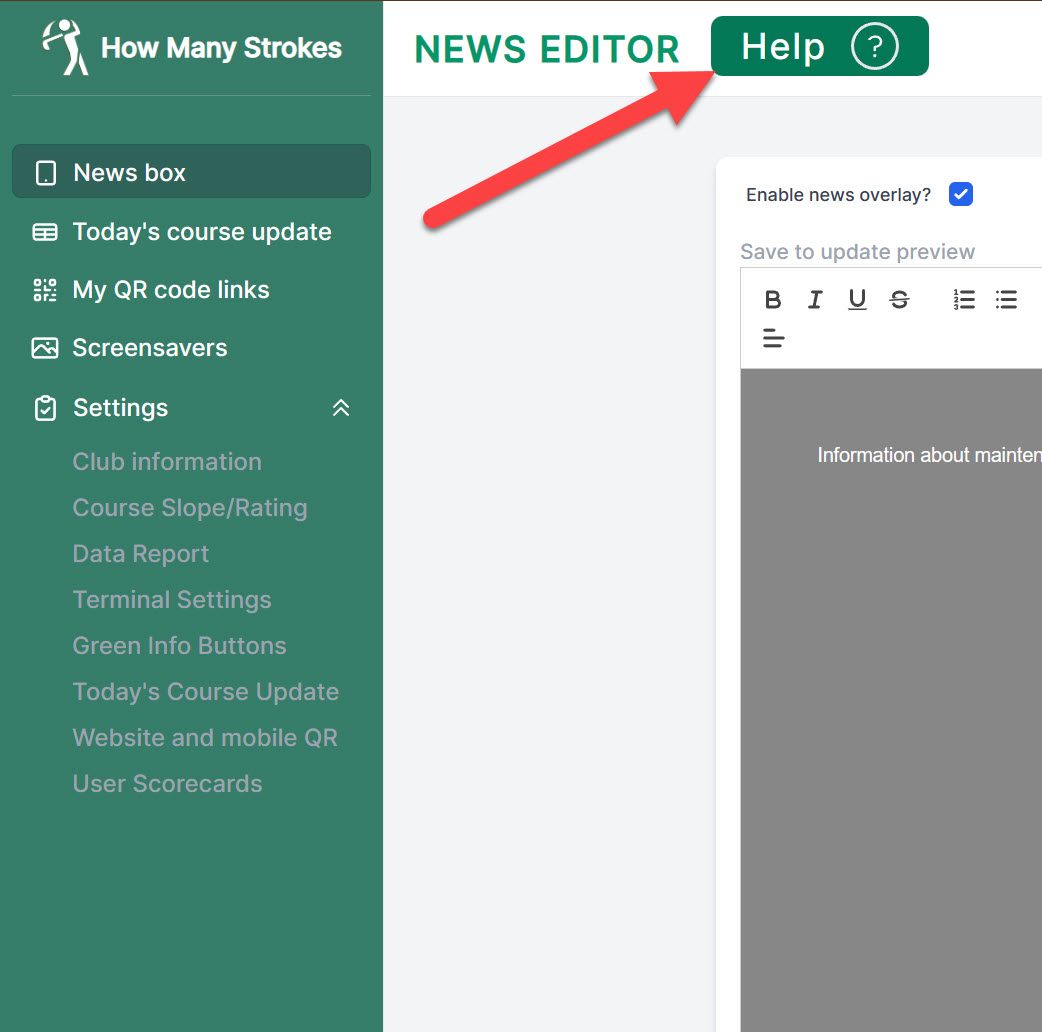
To improve our user friendly management system we have added help to all pages in the system. If you want to know more about how to do specific things or set-up new functionality just click the "HELP" button at the top of the page.
You can see an overview of the help index here. This overview is also available in he management system.
If you have questions or need help setting up new things, you are always welcome to contact us at info@howmanystrokes.com
We use optional cookies for analytics, advertising and embedded videos. Privacy policy
Customize Consent Preferences
We use cookies to help you navigate efficiently and perform certain functions. You will find detailed information about all cookies under each consent category below.
The cookies that are categorised as "Necessary" are stored on your browser as they are essential for enabling the basic functionalities of the site.
We also use third-party cookies that help us analyse how you use this website, store your preferences, and provide the content and marketing materials that are relevant to you. These cookies will only be stored in your browser with your prior consent.
You can choose to enable or disable some or all of these cookies but disabling some of them may affect your browsing experience.
Always Active
Necessary cookies are required to enable the basic features of this site, such as providing secure log-in or adjusting your consent preferences. They are not used for advertising or to track you across other sites. The consent cookie stores a random identifier that lets us keep a record of the choice you made.
Cookie
fazcookie-consent
Duration
6 months
Description
Stores the visitor's cookie consent choices and a random consent identifier used to keep a record of that choice.
Always Active
Analytical cookies are used to understand how visitors interact with the website. These cookies help provide information on metrics such as the number of visitors, bounce rate, traffic source, etc.
Cookie
_ga
Duration
2 years
Description
Google Analytics cookie used to distinguish users.
Cookie
_gid
Duration
24 hours
Description
Google Analytics cookie used to distinguish users.
Cookie
_gat
Duration
1 minute
Description
Google Analytics cookie used to throttle request rate.
Cookie
__utma
Duration
2 years
Description
Google Analytics (Classic) cookie used to distinguish users and sessions.
Cookie
__utmb
Duration
30 minutes
Description
Google Analytics (Classic) cookie used to determine new sessions.
Cookie
__utmc
Duration
session
Description
Google Analytics (Classic) cookie used with __utmb to determine new sessions.
Cookie
__utmz
Duration
6 months
Description
Google Analytics (Classic) cookie that stores the traffic source or campaign.
Cookie
__utmt
Duration
10 minutes
Description
Google Analytics (Classic) cookie used to throttle request rate.
Always Active
Marketing cookies are used to provide visitors with customised ads based on the pages you visited previously and to analyse the effectiveness of the ad campaigns.
Cookie
_gcl_au
Duration
90 days
Description
Google Ads conversion linker cookie.
Cookie
_gcl_aw
Duration
90 days
Description
Google uses cookies for advertising, including serving and rendering ads, personalizing ads (depending on your ad settings at g.co/adsettings), limiting the number of times an ad is shown to a user, muting ads you have chosen to stop seeing, and measuring the effectiveness of ads.
Cookie
IDE
Duration
1 year
Description
DoubleClick/Google cookie used for targeted advertising.
Cookie
test_cookie
Duration
1 year
Description
This cookie is set by DoubleClick (which is owned by Google) to determine if the website visitor's browser supports cookies.
Cookie
_fbp
Duration
3 months
Description
Facebook Pixel cookie used for advertising and analytics.
Cookie
_fbc
Duration
2 years
Description
Facebook click identifier cookie.
Cookie
fr
Duration
3 months
Description
Facebook advertising cookie.
Cookie
datr
Duration
2 years
Description
Used to prevent creation of fake / spammy accounts. Datr cookie is associated with a browser, not individual people.
Cookie
sb
Duration
2 years
Description
Facebook browser identification, authentication, marketing, and other Facebook-specific function cookies.
Cookie
YSC
Duration
session
Description
YouTube cookie used to track views of embedded videos.
Cookie
VISITOR_INFO1_LIVE
Duration
6 months
Description
YouTube cookie used to estimate bandwidth and display settings.
Cookie
LOGIN_INFO
Duration
2 years
Description
This cookie is used to play YouTube videos embedded on the website.